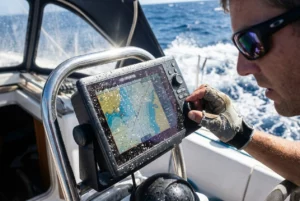
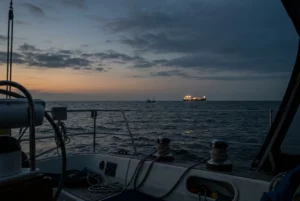
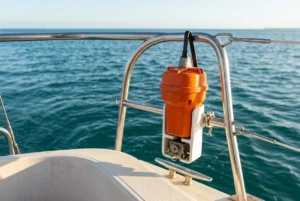
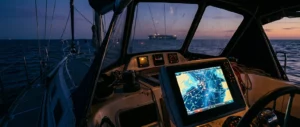
If you already own a radar and a chartplotter, getting them to share one screen is mostly physical work: matching network types, running the right cables, powering the scanner properly and feeding the plotter a heading. This guide covers how to connect marine radar to a chartplotter, and the faults that make the radar picture appear while the overlay on the chart stays wrong or missing. It assumes both units are already on the boat, or about to be fitted, and that you want them working together before an offshore or night passage.
For what radar shows and how to read it, see the separate guide to the fundamentals of marine radar systems. This article is about the hardware and settings.
Check first whether your radar and chartplotter can talk at all
Before buying a cable, confirm that the two units are meant to work together. A radar scanner sends a large stream of image data, and the plotter has to understand the scanner’s protocol. Two devices with Ethernet-style sockets can still be unable to talk, because the socket is only the physical part.
Start with the information on the units themselves:
- Write down the exact model number of the plotter and of the radar scanner (and of any interface box that comes with the radar).
- Note the software version currently installed on the plotter.
- Find the plotter maker’s list of supported radars, normally in the manual or on the support page for that model.
Radar and plotter from the same maker and the same product generation are the most likely to pair. Mixing brands is the case most likely to fail, because many manufacturers use their own protocols. Some combinations are documented as supported and others are not. The maker’s compatibility list decides, not the shape of the connector.
Two other situations are worth checking:
- An older radar with its own built-in screen. Some of these were designed as standalone units with no data output to a plotter. Check whether the radar has a network port at all before assuming it can be connected.
- Software that is too old. A plotter may support your radar only after an update. Update the plotter’s software first, following the maker’s instructions, so you are not troubleshooting a fault that an update fixes.
If your radar and plotter are not compatible, the answer is to change one of them or to use a maker-approved converter, if one exists. Workarounds assembled from generic parts rarely work, and they leave you with a fault you cannot diagnose in the middle of the night.
Which connection type you have: Ethernet, proprietary network or wireless
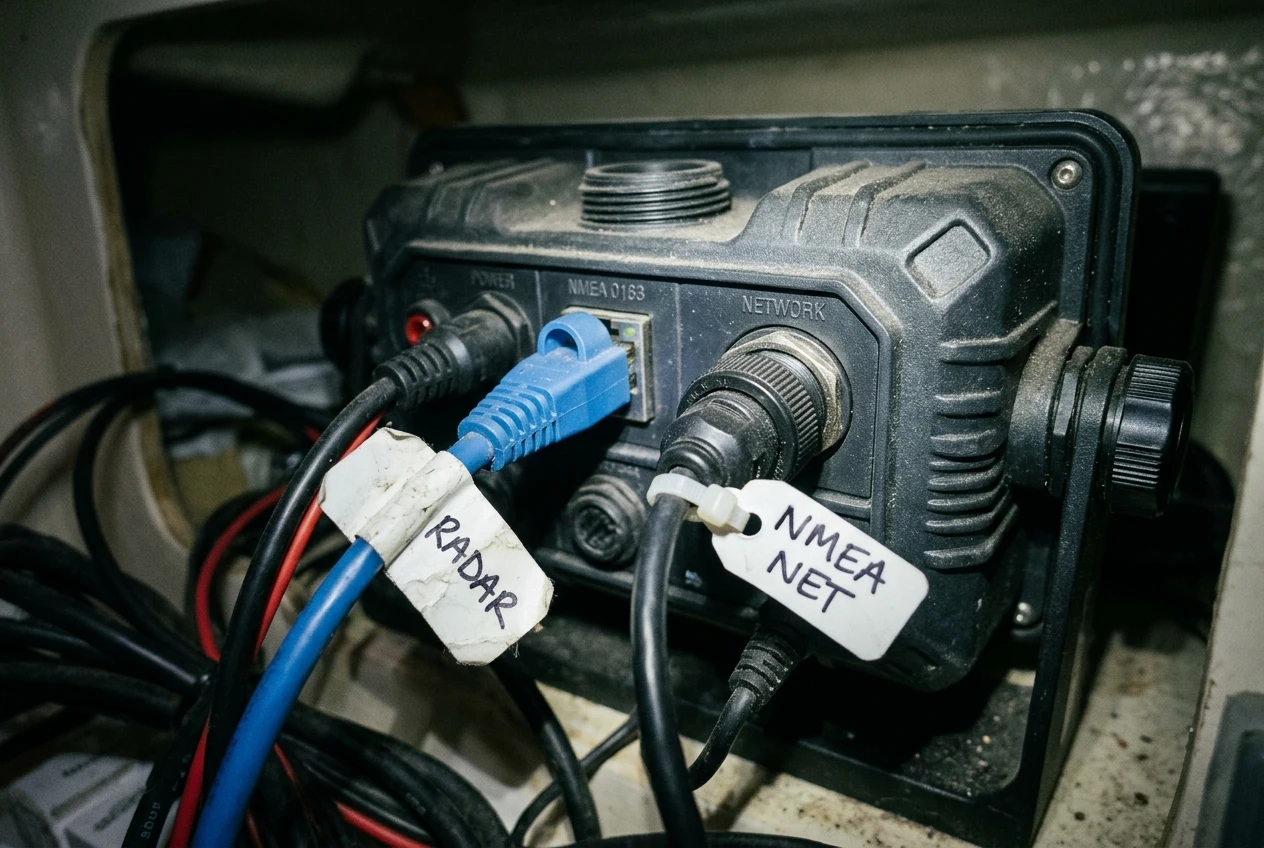
Radar images need far more bandwidth than the networks most boats use for instruments. NMEA 2000 and NMEA 0183 carry short messages such as depth, wind and heading. They do not carry a radar picture. The radar needs its own network link to the plotter, and there are three kinds.
Ethernet
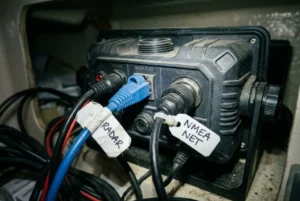
Many radars connect over standard Ethernet. The plotter and radar exchange data over a twisted-pair cable, often with an RJ45 plug at one or both ends. In some systems the plug is a waterproof round connector instead, but it carries the same type of signal. This is the simplest case to understand, and it lets you add a network switch when more than one unit needs the radar.
Proprietary marine networks
Several manufacturers run their own network on top of Ethernet, with connectors and sometimes software behaviour that are specific to the brand. Raymarine’s RayNet, the Garmin Marine Network and Furuno’s NavNet are examples. The cable may look like Ethernet, but the plugs are not interchangeable with standard ones. You usually need the maker’s own cables or adapter cables to bridge a proprietary socket to a standard one.
Wireless
Some radars connect by Wi-Fi, and these are usually designed to show the picture on a phone or tablet app. Whether a particular wireless radar can feed a chartplotter varies by model, and some cannot. If your goal is overlay on a fixed plotter at the helm, confirm in the maker’s documentation that the plotter supports that radar. Wireless links also depend on signal quality inside the boat, and a cabin full of metal or carbon fibre can reduce it.
To identify what you have, look at the back of the plotter and the radar’s cable or interface box. Find the socket labels, check the manual’s connection diagram, and note whether the radar cable has a separate power lead and data lead. Draw the layout on paper: scanner, any interface box, switch, plotter and each power source.
The cables, adapters and network switch you may need
Most radar installs use three kinds of parts. Buy them to the maker’s specification for your model, because a part that fits physically can still be the wrong one.
The scanner cable. This usually combines power and data, or splits into a power lead and a data lead near the scanner. Scanner cables come in set lengths, and the maker sells extensions. Every join is a place where water can get in, so use the shortest cable that reaches, and join with the maker’s own connectors.
Adapter cables. If the radar uses one connector type and the plotter another, an adapter cable bridges them. Check the exact part number against both units’ model numbers. Adapters are common when pairing a newer plotter with an older scanner from the same maker.
A network switch. If the plotter has only one network port and you also want a second plotter, a sonar module or another device on the same network, you need a switch. A switch lets several units share the network. Use the one the maker lists as compatible, because some radar data flows poorly through a generic consumer switch, and a waterproof, marine-rated unit is the better choice for a place that sees damp. Mount it somewhere dry, accessible and with all the cables labelled.
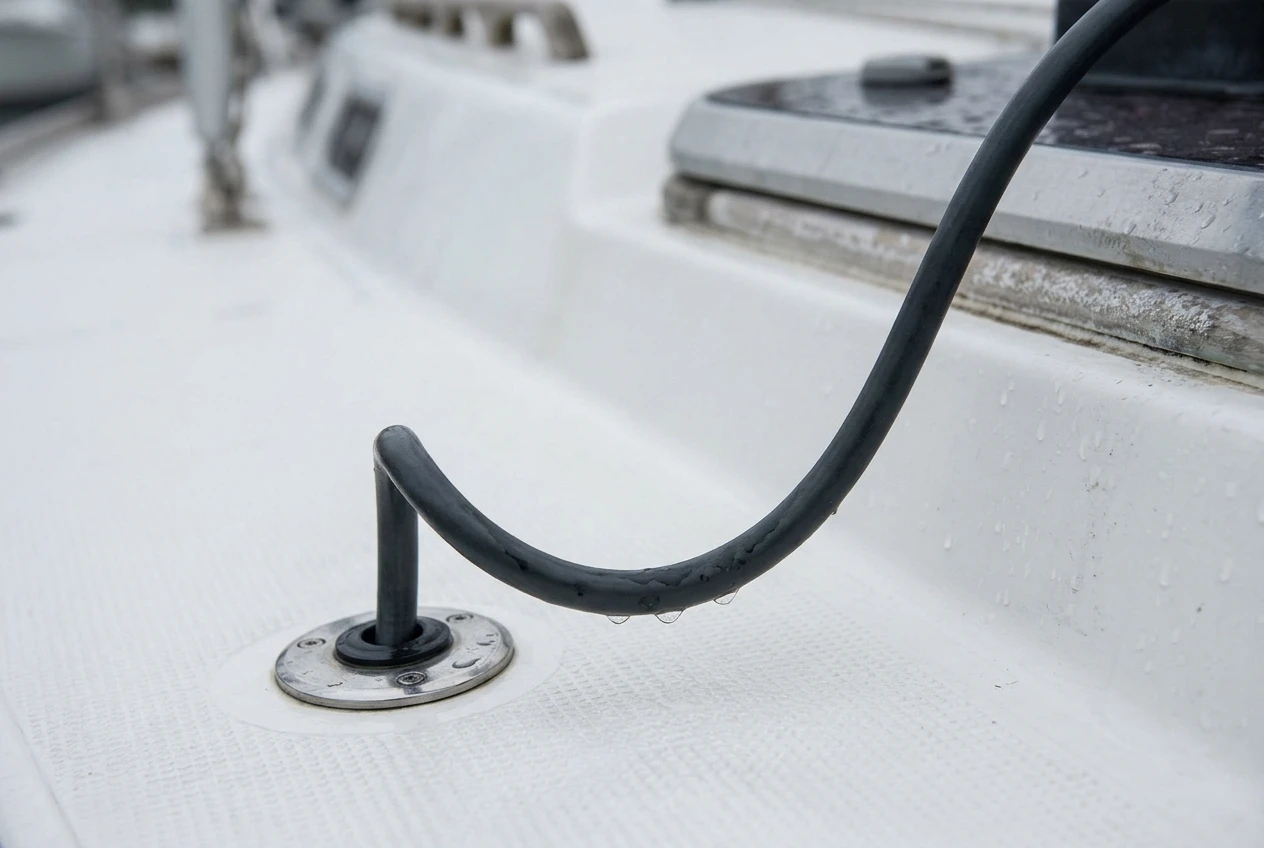
Some practices make installs more reliable:
- Do not cut and re-terminate network cables unless the maker explicitly allows it. Poorly crimped plugs cause intermittent faults that are slow to find.
- Leave a drip loop in each cable before it enters a connector or deck gland, so water runs off the cable instead of into the plug.
- Keep radar data cables apart from VHF, SSB and AIS antenna coax, and away from high-current power cables, where practical.
- Seal and support connectors against vibration, and tighten locking collars fully.
- Label both ends of every cable. When a unit stops talking, you will want to follow each cable without guessing.
After connecting, give the plotter a minute to detect the radar. Most units display a radar page or icon once the network link works. If nothing appears, check the plugs and the power before you change any settings.
Powering the radar without starving the rest of the boat
A radar scanner draws more current when it is transmitting than when it is in standby, and open-array scanners generally draw more than small domes. The exact figures are in the datasheet for your model. Read them before you plan the wiring, because the cable and the breaker are chosen from those numbers.
Power faults often look like network faults. A scanner that is not getting enough voltage can fail to start, drop out intermittently or reboot, and the plotter will show that as the radar not being found.
Things to get right:
- Wire size. Long runs lose voltage along the cable. Use the cable gauge the maker specifies for your cable length, and keep the voltage drop within what the manual allows. If the scanner sits at the masthead or on a mizzen, the run is long, and a thin cable will cause trouble.
- Fuse or breaker. Fit the protection the manual specifies, close to the power source, with its own labelled switch if possible.
- Which battery. Connect the radar to the house bank rather than the engine start battery, unless your electrical system is designed otherwise. Starting the engine causes a voltage dip, and a radar on the same supply may reboot mid-passage.
- Clean connections. Use tinned marine cable, crimped terminals and a solid negative connection. Corrosion at a terminal gives a voltage drop that is hard to find.
- Warm-up. Scanners take time to warm up before they transmit. A radar that has not finished warming up will not give a picture, even though the network link is fine.
Think about the power budget for a night passage too. If the radar stays on all night with the autopilot, plotter, instruments and navigation lights, the total draw adds up. Many radars have a timed transmit mode that sends a few sweeps at intervals, with an alarm if a target enters a guard zone. Check what your model offers and compare it against your battery capacity and charging. Whether you transmit continuously or on a timer, the plan should be made before you leave, not at 0300.
Connecting a heading sensor so overlay lines up with the chart
This is where most overlay problems start. A radar picture is drawn relative to the bow: a target dead ahead is at the top of the screen whichever way the boat points. A chart is drawn relative to north. For the plotter to lay one over the other, it must know which way the bow is pointing. That information is the heading, and the radar does not supply it.
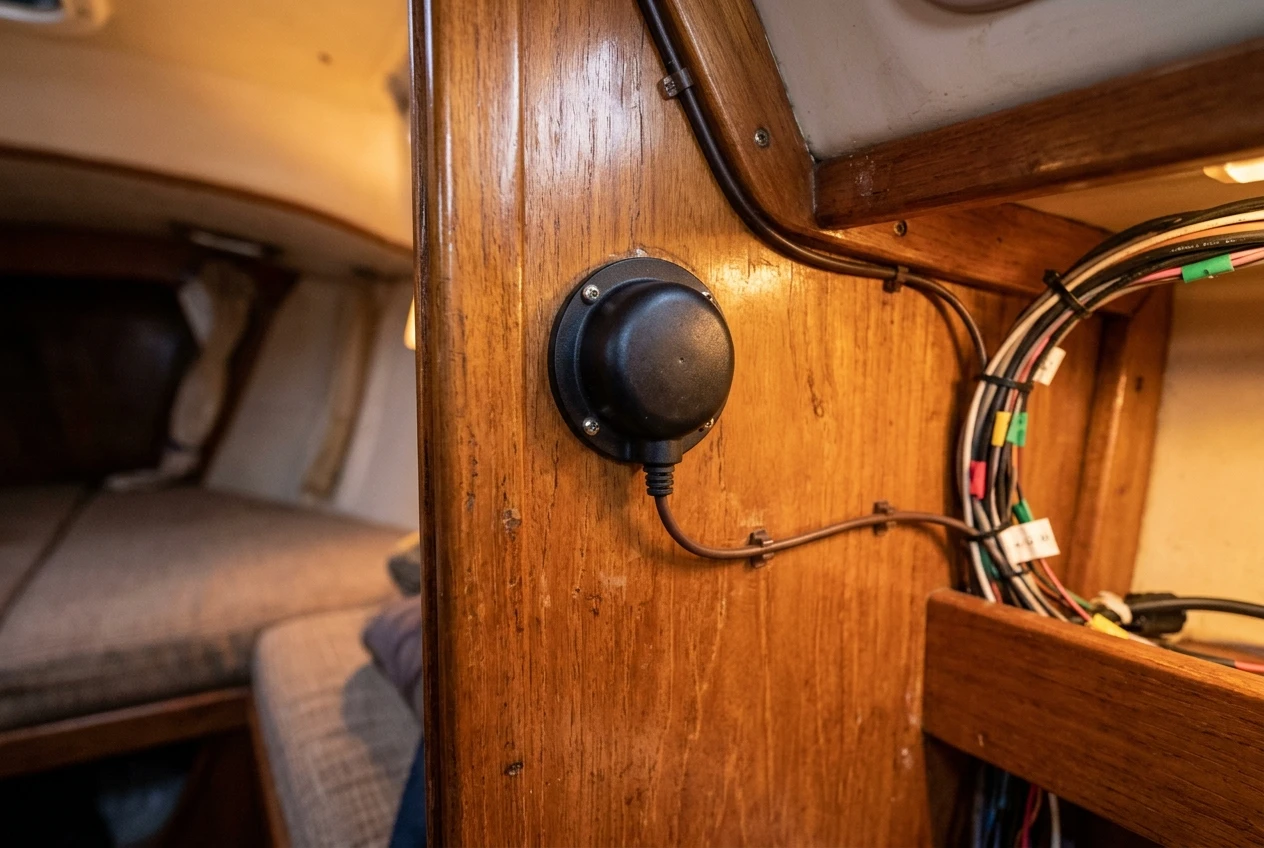
Without a heading source, the plotter may show the radar picture on its own radar page and either refuse to overlay it or place it incorrectly on the chart.
Where heading comes from
Heading usually comes from one of these:
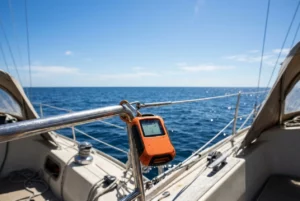
- An electronic fluxgate compass or a similar magnetic sensor.
- The compass in an autopilot system, shared over the boat’s network.
- A satellite compass, which uses two GPS antennas to calculate heading without relying on the earth’s magnetic field.
- An attitude and heading reference unit, if your system has one.
The heading reaches the plotter over NMEA 2000, NMEA 0183 or a maker-specific bus, depending on the equipment. Check which your sensor outputs and which input the plotter accepts, then confirm that the plotter has been told to use that source. Many plotters need the source selected in a settings menu rather than choosing it automatically.
Why GPS course is not a substitute
Course over ground (COG) from GPS describes where the boat is moving, not where the bow points. Some systems fall back on COG when no heading is available. This can work approximately in calm conditions, but it fails in several common situations. A boat in a cross-current or making leeway moves sideways, so the track differs from the heading. At a standstill, or very slowly, COG is unreliable and jumps around. At anchor or when drifting, it is meaningless. An overlay based on COG will look right in a straight line and wrong exactly when you are manoeuvring near traffic.
Placing and setting up the sensor
A magnetic compass sensor must sit away from sources of magnetic interference such as engines, speakers, steel and power cables. Follow the maker’s guidance on placement. After installing it, run the calibration or swing procedure in the manual, in calm water, with the engine running if that is how you will normally sail.
Also set the heading reference consistently. If the plotter shows heading as magnetic and the chart is oriented to true north, the plotter has to apply magnetic variation. If variation is not applied or comes from the wrong place, the overlay will be rotated by the variation angle. Check whether your plotter uses true or magnetic heading and that the variation source is working.
Turning on the overlay and aligning radar to chart
Menu names differ between manufacturers, so use these as a sequence and find the matching option in your manual.
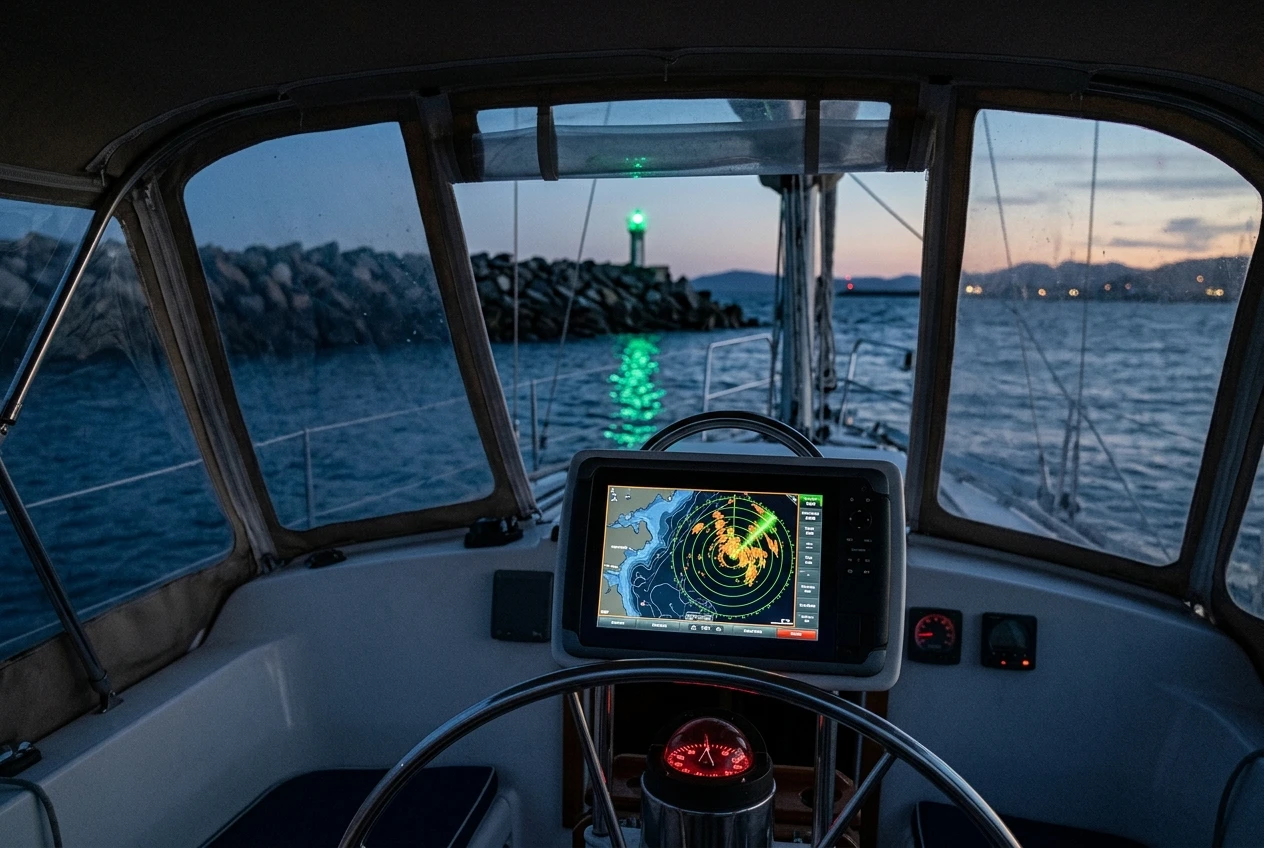
- Confirm the link. Open the radar page. The plotter should detect the scanner, show it warming up, and then offer standby and transmit.
- Check the heading. Look at the data bar or the instrument page. The heading should be a sensible number that changes smoothly when the boat turns. If it does not, fix this before going further.
- Transmit and set the range. Set a range that fits where you are, such as a mile or two in a harbour. Adjust gain, sea clutter and rain clutter until the picture is clean, using the maker’s automatic modes first if offered.
- Open the chart page and turn on radar overlay. The plotter should draw the radar echoes on top of the chart. Reduce the radar transparency or intensity if the chart is hard to read.
- Check orientation. Heading-up, course-up and north-up change how the display rotates, and overlay behaviour depends on the plotter. Pick the one that suits your style, and expect the overlay to follow the heading data in each.
Aligning radar to chart
Even with the heading connected, the overlay can be rotated by a small constant angle because the scanner is not mounted exactly parallel to the boat’s centreline. Most radars have a heading or bearing alignment setting for this.
To adjust it, choose a fixed, clear target that is also charted accurately, such as the end of a breakwater, a prominent pier head or a fixed navigation structure. With the boat in open water near it and heading steady, compare the radar echo to its charted position on the overlay. If the echo is consistently to one side, adjust the bearing alignment offset until it lines up. Repeat using a second target on a different bearing to confirm.
Also compare range. If the echo sits closer or farther than the charted position in every direction, check the range settings and the GPS position source.
Keep in mind that the chart itself has limits. Older surveys and small-scale charts can place features slightly away from their real positions, so a small mismatch against one target does not always mean the radar is wrong. Check against more than one target before you change settings.
When the picture is wrong: the faults that catch most installs
If the radar works on its own page but the overlay is wrong, work through these in order. They are listed from the most common causes to the least.
- No overlay option appears, or the overlay is greyed out. The plotter has no valid heading. Check that the sensor is powered, that its data reaches the plotter, and that the plotter has been set to use it.
- The overlay is rotated by a fixed angle. Either the bearing alignment is not set, or the plotter is using magnetic heading where it needs true (or the reverse). Check variation, then the alignment offset.
- The overlay swings or lags when the boat turns. The heading source updates too slowly or is noisy. A compass with poor damping settings, or a heading shared over a congested bus, can cause this. Check the sensor’s output rate and damping options.
- Echoes are offset from charted land in every direction. The GPS position may be off, the chart datum may not match, or the GPS antenna offset has not been entered. Check the datum setting and the GPS source.
- The radar is not detected. Check scanner power first, then the network cable and plugs, then the switch if you have one. Some plotters also need the network to be given time to start up in a fixed order. Follow the maker’s start-up sequence.
- The picture drops out or the radar reboots. Suspect voltage. Measure the voltage at the scanner while it transmits, not just at the battery, and look for a loose or corroded connection.
- The picture is full of speckle or ghost echoes. Gain and clutter settings are usually the cause, and interference from other transmitting equipment can add to it. Reduce gain, adjust the sea clutter, and check where the cable runs relative to other equipment.
- Land and boats appear but small targets do not. The clutter filters may be set too aggressively, hiding small vessels along with the waves. Reduce the filter slowly and watch what returns.
- The overlay works on one plotter but not a second. Each plotter needs its own heading source and software version, and the network switch or settings may be blocking it. Check the second unit’s configuration separately.
Keep a written record of the settings you end up with, including alignment offset, heading source and variation setting. If a software update or a factory reset wipes them, you can restore them in minutes.
A dock-side test before you rely on it at night or in fog
A radar that has only been tested at the dock can still fail on passage, but a radar that has never been tested at all will fail at the worst time. Do a structured test while you can still fix things with tools and daylight.
Safety first. A transmitting scanner emits microwave energy. Keep people clear of the scanner while it transmits, especially an open array at head height, and follow the safe distance in the manual. Switch to standby while anyone works near the mast or radar arch.
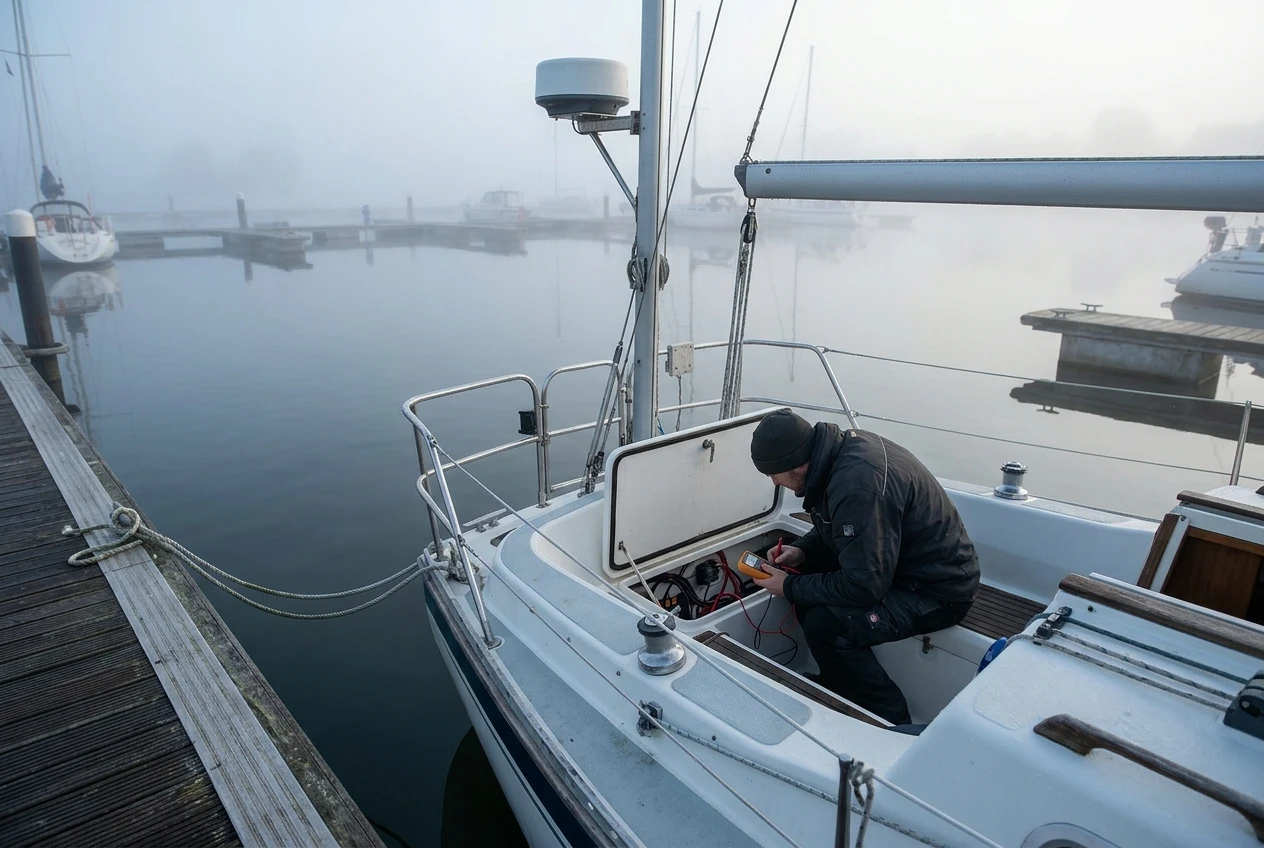
At the dock:
- Switch everything on with the engine off, and watch the scanner voltage during warm-up and transmit. Note any dip.
- Confirm the plotter detects the radar and that the standby and transmit modes work.
- Check that heading is shown and changes when the boat swings on its lines or when you turn the plotter’s heading source through a check.
- Start the engine with the radar transmitting, and see whether the scanner reboots or the picture drops out.
- Switch on the other loads you use at sea, such as the autopilot, instruments and lights, and confirm everything stays stable.
On the water, in daylight:
- Pick a charted target such as a breakwater end or a fixed mark, and check overlay alignment from a few bearings.
- Turn the boat through a full circle slowly and confirm the overlay follows without lag or jumps.
- Compare radar echoes against vessels you can see, and practise adjusting gain and clutter so you know what a good picture looks like on your unit.
- Test the guard zone alarm and the timed transmit mode if you plan to use them.
- Record your final settings.
Practise in clear weather so the controls are familiar when visibility is poor. In fog or at night, you want to adjust range and gain without searching through menus, and you want to know what normal clutter looks like so that a real target stands out.
Next steps
A working overlay shows you echoes on the chart, but it still misses things. To see which targets radar can lose and what AIS adds, read the guide to radar vs AIS for sailboats. Then run through the pre-departure safety equipment checklist so the radar sits alongside the rest of the gear you will need on the passage.
This article was created with AI assistance and reviewed by a human editor.
Disclosure: This post contains Amazon affiliate links. If you buy through them, we may earn a small commission at no extra cost to you.
About The Author