OpenCPN sailing software gives amateur sailors a practical way to handle digital navigation without expensive commercial systems. When I first started looking for reliable chart-plotting software for my small boat, OpenCPN stood out because it’s open source, actively maintained, and works on various devices. The fact that so many other everyday sailors use it made me want to try it even more.
Long offshore trips aren’t the only time I need strong navigation tools. Even a relaxed weekend cruise or daysailing along the coast brings up situations where I need accurate charts, clear route planning, and real-time GPS tracking. OpenCPN makes these things possible, even on a budget, and runs on laptops, tablets, or even smartphones.
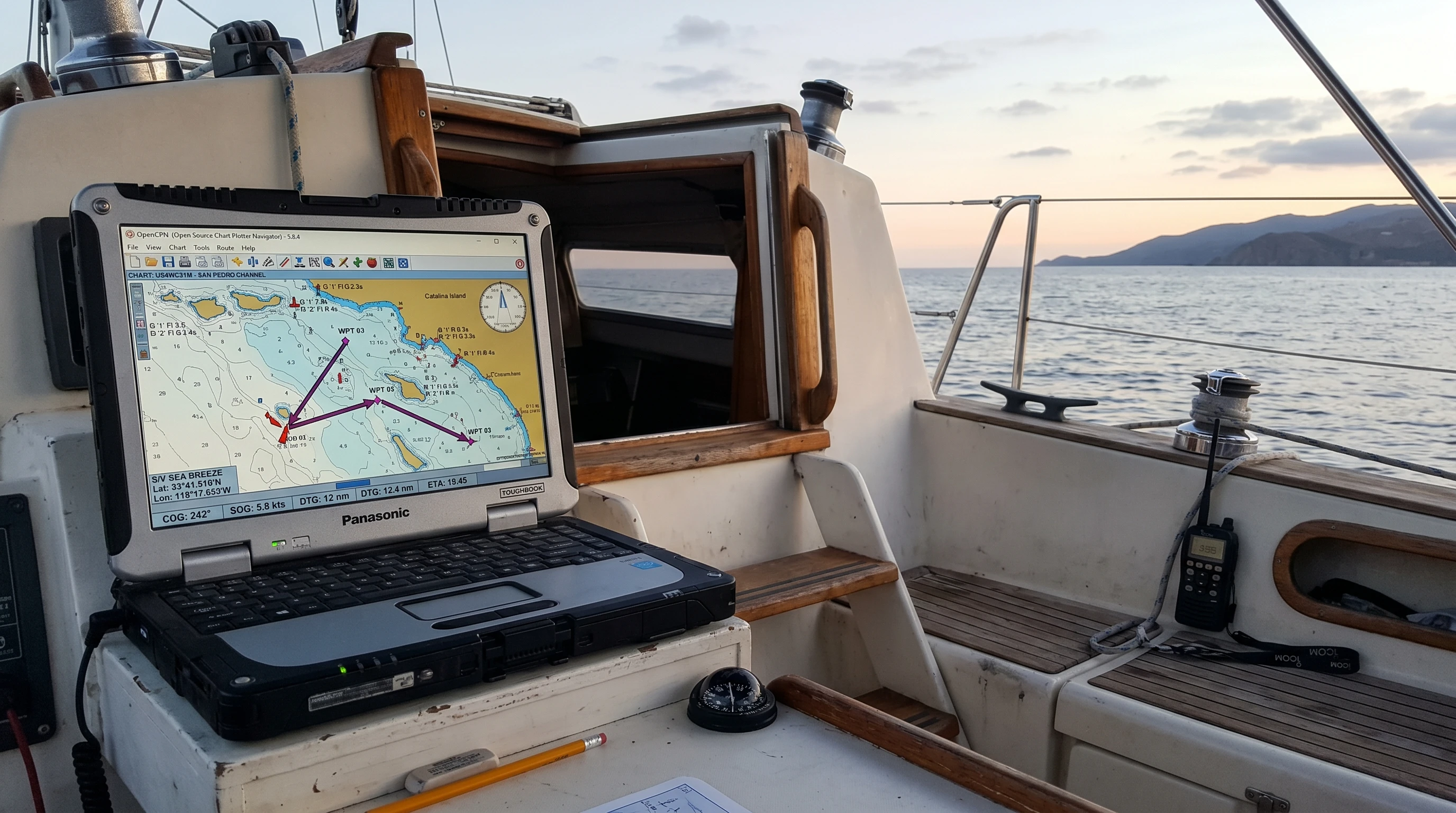
This all-in-one guide digs into how OpenCPN serves amateur sailors, highlighting the best OpenCPN features for sailors, clear installation steps, troubleshooting advice, and honest comparisons with other navigation apps. I add my firsthand experiences, common questions, and small tips to help you get the most out of OpenCPN, no matter what type of sailing you enjoy. I’ve even included extra detail and insight throughout this expanded guide to bring the total information, so you’re getting a truly super detailed overview of the software from a real user’s perspective.
What Is OpenCPN? A Beginner-Friendly Navigation Solution
OpenCPN is free navigation software created by sailors for sailors. It’s designed to chart your position in real time, plan and follow routes, and connect to GPS and boat sensors, such as AIS, depth sounders, and wind instruments. Unlike old paper charts or complex Pro Tools, OpenCPN balances powerful features with an interface that most people can learn quickly.
Why OpenCPN Fits Amateur Sailors
- Affordable: No paid license required, so I don’t have to budget for expensive annual fees.
- Community Driven: Regular updates, plugins, and advice from fellow sailors are always available in forums and user groups.
- Customizable: I can add charts, plugins, and features as my sailing needs grow.
- Cross Platform: Runs on Windows, Mac, Linux, and Android, so I can use it on whatever device I already own.
Common Sailing Scenarios Where OpenCPN Helps
- Planning safe passages while coastal cruising.
- Finding anchorages and depth contour lines before entering a new bay.
- Getting quick updates on GPS position and speed during a trip.
- Viewing AIS targets around busy harbors.
- Monitoring changing conditions on longer passages through integration with weather overlays.
Whether you’re charting a course around sandbanks, watching out for traffic, or setting up for a night at anchor, OpenCPN’s flexibility fits most types of recreational sailing. While there are other high-end solutions for ocean racing or larger yachts, for amateur and coastal use, OpenCPN strikes a good balance of ease and robust features.
Installing OpenCPN: Step-by-Step Guide
Getting OpenCPN up and running doesn’t require a tech background. I found the installation process clear, especially with the help of online guides and community support. Here’s a quick version of my own OpenCPN installation tutorial, along with some tips to make the most of your setup process.
Choosing Your Device
OpenCPN works best on a laptop for full chart viewing, but the mobile versions on tablets or phones are handy in small cockpits or as backups. I use both depending on where I am on the boat. Tablets can be especially handy for quick access and serve as a perfect backup if your main system fails.
- Visit the official OpenCPN website and choose your operating system.
- Download the installer and run it on your device.
- Follow the prompts to finish installation. For Windows and Mac, these steps are very familiar.
- On Android, search for “OpenCPN” in the Google Play Store and install directly from there.
Adding Charts
Charts don’t come with OpenCPN. I download official raster charts from NOAA for US waters or purchase third-party charts for other regions. The process is as easy as:
- Download chart files from trusted sources.
- Put the chart files in a folder on my device.
- Point OpenCPN to that folder in the Charts settings menu.
Local government sources, hydrographic offices, or commercial vendors supply charts for waters outside the US. Always make sure your charts are up to date before each season.
Initial GPS Setup
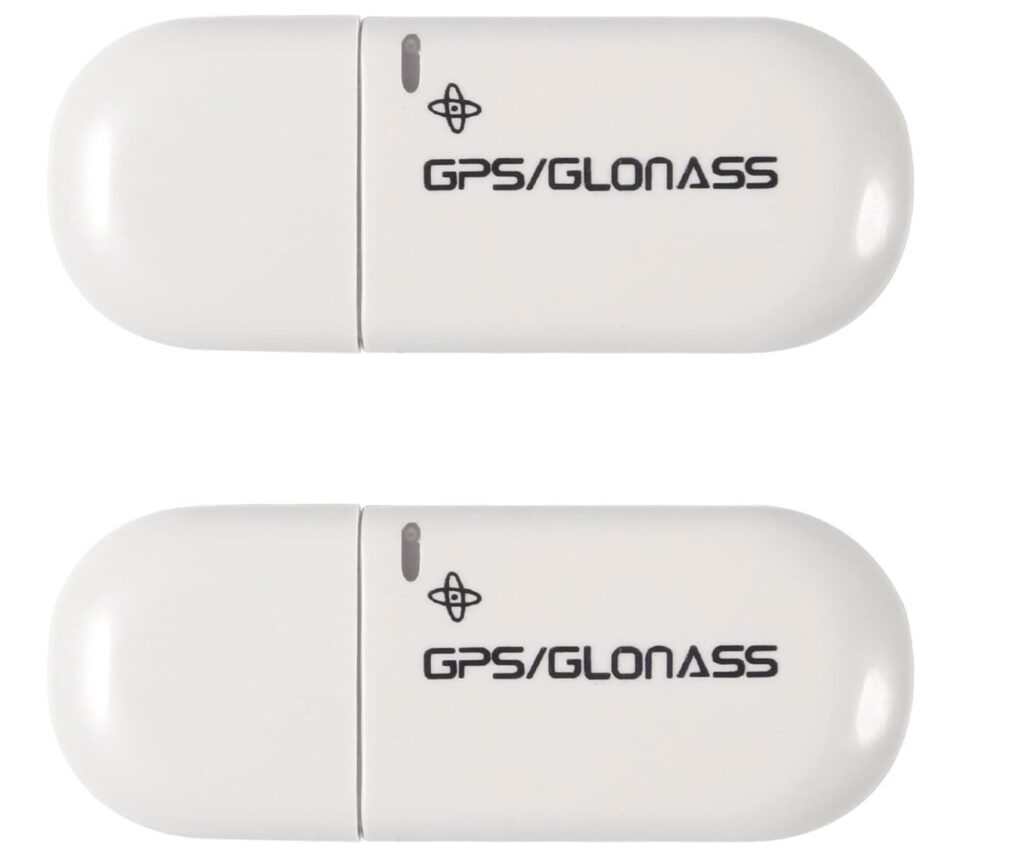
If my laptop doesn’t have a built-in GPS, I use a USB GPS puck. Plugging it in and selecting the right COM port in OpenCPN settings connects the program to live position data. Some sailors like to use Bluetooth GPS receivers on tablets for even more flexibility onboard.
First Time Plugins
Plugins extend what OpenCPN can do. My first plugin was the “Weather Routing” plugin for planning around wind forecasts. I access plugins from the Options menu in OpenCPN and install them as needed. Some other popular plugins include radar overlays, satellite imagery, performance tracking, and celestial navigation tools.
Remember to check for updated plugin versions when you upgrade OpenCPN, as compatibility may change.
Core OpenCPN Features That Make Sailing Easier
I started out looking for a simple chartplotter, but OpenCPN has enough depth that even as I learned more, I kept stumbling upon cool features that make it worth considering for any sailor. Here are the areas where I see the biggest value.
Best OpenCPN Features for Sailors
- Real Time Chart Display: My GPS position updates live on the chart, giving me the same confidence as a built-in chartplotter.
- Route Planning: Drawing a route is as easy as clicking to set waypoints. I can edit these by dragging or inputting exact coordinates for more accuracy. The visual approach to mapping legs makes double-checking routes simple.
- GPS Tracking: The breadcrumb trail keeps a visual record of where I’ve been, making returns or reviewing trips simple. After a trip, I often refer to the trail to note unexpected course changes or log special moments.
- Weather Overlay: I can import GRIB weather files to view wind, rain, and pressure forecasts overlaid on the chart. This is really useful on multidate passages when conditions can change.
- Plugin Support: Extra plugins for things like AIS, radar, tides, satellite imagery, and performance tracking help personalize the setup for any type of trip.
- Anchor Watch: I use this alarm to alert me if the boat drifts out of a designated anchoring zone. It adds peace of mind when sleeping at night or leaving the cockpit temporarily.
- Custom Chart Layers: Overlaying satellite images, scanned paper charts, or user-made marks keeps everything visual and relevant. This feature helps when double-checking tricky areas or local hazards.
Coastal Navigation Essentials
OpenCPN’s coastal navigation features are strong. I rely on:
- Depth contours: Essential for safe entry into unfamiliar harbors or working around shoals.
- Route optimization: I account for current conditions, wind, and known hazards to create realistic travel plans. You can even overlay tide predictions for scheduling arrivals at inlets or bridges.
- Quick mark placement: Dropping a waypoint or note whenever I spot a local hazard or helpful anchor spot during a trip keeps my charts up to date.
- Integration with autopilots: In some setups, OpenCPN can connect to simple autopilot systems, enabling automatic route-following along carefully mapped courses.
How OpenCPN Steps Up Navigation
Cheap handheld GPS units are useful but can feel limited compared to what even a simple OpenCPN setup provides. Having all my navigation tools in one place helps reduce mistakes, especially when the weather or traffic gets tricky.
Reducing Risks and Stress
- On busy days, the AIS plugin warns me about passing ships, with alarm sounds if there’s a risk of collision. This visual warning lets me react early and plan evasive actions before things get tight.
- The tide and current plugins help me avoid fast tides in narrow inlets that would be tough to cross safely without detailed knowledge. I check these overlays before planning departure times, especially in high-current harbors.
- Route editing lets me mix it up quickly if the weather changes. I just updated my waypoints, and the route refreshes in seconds.
- Multiple chart sources allow me to cross-reference what I see in real life with what’s on my screen, which is especially valuable in unfamiliar areas where official charts might miss local changes.
Visualizing the Whole Trip
I get a full-screen view with chart layers, route lines, and wind overlays. This helps me share plans with friends or family who might not be used to reading paper charts. Everyone aboard can follow along if something changes during the trip. In group trips, passing a laptop or tablet around ensures everyone is on the same page. I’ve even used the screenshot tool to send planned routes to crew via text before meeting up, which helps with pre-departure planning.
OpenCPN vs Other Navigation Apps
The number of navigation apps out there can be overwhelming. I’ve tested a few in my search for the right fit for my cruising style. Here’s how OpenCPN matches up based on my experience.
Comparison at a Glance
- OpenCPN: Free, open source, highly customizable, best value for DIY tech setups. Offers almost everything a coastal sailor could need, and is even usable for long passages with the right plugins.
- Navionics: Paid, sleek mobile interface, depends on yearly subscriptions, limited by chart region licenses. Navigation is polished, but customization is locked down.
- iNavX: Strong iOS support, good chart range, paid app and charts, not as flexible for plugins or custom setups.
- SeaNav: Lightweight iOS and Android charting, but not as full-featured for integrating boat instruments.
If I want the best mix of features and low cost, OpenCPN is my choice, especially on longer or more technical trips. For quick day sails or backup, I sometimes use one of the slick mobile apps, but I always keep OpenCPN as my primary source of truth. The open-source philosophy also means I can tailor it to my needs, rather than being forced into one company’s system.
OpenCPN on Mobile: Practical Reviews from Regular Sailors
I use the OpenCPN mobile app as a backup chartplotter and quick route editor while standing at the helm. The Android app is a paid download, but it still costs far less than most other apps for the same features. Here’s what stands out about using it on a phone or tablet:
- Touch controls are smooth for zooming and panning around charts. This is critical when splitting attention between helm and screen.
- Waypoint and route planning work almost the same as on a desktop, so I don’t have to relearn controls.
- The bright display is great for use in sunlight, though setting the device brightness high is really important. Investing in a glare shield or screen protector can help, too.
- Some plugins and advanced features from desktop OpenCPN aren’t available, but the app handles essentials well. You still get GPS, chart overlays, and basic route management.
For longer passages or when I need to use lots of layered data and plugins, I prefer a laptop setup. For coastal hopping and quick status checks, the mobile app handles all the basics. As a backup, my tablet with offline charts has proven itself even when the main computer acted up mid-trip.
Tips for Using OpenCPN: Advice from Experience
The first time I tried new navigation software, I made a few mistakes that slowed me down. Here are some hands-on OpenCPN troubleshooting tips to help you avoid common problems:
Common Questions and Fixes
- OpenCPN not seeing my GPS: Check device manager or system settings to make sure the GPS puck is recognized. Try restarting both the computer and OpenCPN, and double-check the data port setting.
- Charts not showing up: Make sure the correct folder path is set in chart settings, and that chart files are unzipped and complete. Sometimes, chart types or sources need to be reviewed if there’s a format mismatch.
- Performance issues: Mobile devices and older laptops sometimes lag when loading large chart files. Trim chart folders to just the regions you need to speed things up. Deleting old or duplicate charts makes everything run more smoothly, especially when storage space is limited.
- Plugin glitches: Always update plugins along with OpenCPN, since sometimes an update to one can break older versions of the other. Restart OpenCPN after installing new plugins. As a rule of thumb, install one plugin at a time and test before adding more, preventing a tricky conflict chain.
- Route errors: Check for accidental clicks that set waypoints on land or inside restricted zones, and use the route “Validation” tool to double-check the path. Always review each leg for shallow spots or new hazards, using the latest chart info.
Online Resources
I make use of the active OpenCPN user forum, as well as tutorials and troubleshooting pages linked from the official site. When stuck, searching for my exact error message almost always gives me an answer from someone who’s already fixed it. There are also several YouTube walkthroughs and wikis compiled by everyday users, giving the troubleshooting advice a real-world flavor.
For those seeking extra instruction, joining a local sailing club or online webinar focused on OpenCPN can speed up the learning process and provide valuable networking with experienced sailors.
OpenCPN for Cruising, Racing, and Club Sailing
OpenCPN isn’t just for solo sailors or tech geeks. I’ve seen entire sailing clubs use it to run group passages, plan races, or teach students the basics of digital navigation. For local clubs or flotillas, sharing planned routes or anchorages via exported GPX files makes teamwork easier and allows every boat to view the same plan on its own system.
Racing
Although dedicated race software offers more advanced tactics and wind-prediction tools, OpenCPN works well for course plotting, waypoint management, and tracking completed legs for smaller events or club races. The ability to map out marks in advance saves time at the skipper’s meeting, and everyone can share the same route file for consistency.
Learning and Family Trips
The simple interface and free access make OpenCPN a great teaching tool. When showing new visitors or kids how navigation works, I find that having the electronic chart visible helps everyone stay engaged and aware of the route. For many, seeing distance, estimated time of arrival, and hazards on screen makes navigation much more approachable than traditional chartwork alone.
Some sailing schools now use OpenCPN as a digital primer, introducing students to modern navigation technology before moving on to more advanced, professional systems. This ease of entry bridges the knowledge gap and helps bring new sailors into the world of electronic charting.
Final Advice: Getting Started with OpenCPN
Starting slow is the best way to get comfortable with OpenCPN. As with any boating tool, I make sure to test features at the dock or while at anchor before relying on them underway. Here’s a simple action plan if you’re new to OpenCPN:
- Install OpenCPN on a laptop or tablet and run through the menus to get a feel for navigation.
- Download a set of charts for your home waters and add them to your library, testing how they display and zoom.
- Test GPS connections and plot a simple route between familiar points. Try moving your GPS while watching the avatar move on screen.
- Try out features like route tracking, anchor alarms, and tide overlays before your next trip. Simulate routes with the system at home for extra practice.
- Bookmark the OpenCPN user guide and join a forum for quick answers to questions as you learn more.
Having OpenCPN sailing software on my devices makes me feel better prepared for everything from local day sails to big upcoming trips. My experience keeps showing me that the best navigation tool is the one you know how to use, and OpenCPN makes that easy for anyone who wants to grow their sailing skills without high costs. With a bit of hands-on practice and help from the community, you’ll find your confidence at sea grows, and you might find yourself teaching other sailors these helpful tricks soon, too.
This article was created with AI assistance and reviewed by a human editor.
About The Author